


Many home entertainment enthusiasts find themselves questioning the true resolution of their living room screen after noticing soft imagery on streaming apps or encountering setup roadblocks with modern hardware. Knowing whether your display delivers authentic Ultra HD clarity can eliminate frustrating guesswork, which is why asking is my tv 4k capable has become such an essential troubleshooting step. Older displays and confusing retail labels often obscure the technical reality, leaving viewers unsure if their screen outputs full 3840 x 2160 pixels or merely stretches a standard high-definition signal.
Verifying your display specifications ensures you receive the visual clarity, color fidelity, and dynamic range that contemporary film masters and sporting events provide. When paired with dedicated 4K streaming displays or external media players, a properly configured Ultra HD screen produces four times the pixel density of standard 1080p screens. Understanding how to check hardware model numbers, inspect high-speed HDMI inputs, and navigate system diagnostic menus allows you to unlock optimal video performance across all your favorite entertainment sources.

Verifying 4K Ultra HD Resolution and Signal Integrity on Modern Displays
Determining whether a television supports authentic 4K resolution involves inspecting physical hardware indicators, software menus, and connected media devices. A genuine 4K display features a native grid of 3840 by 2160 pixels, offering roughly 8.3 million individual subpixels to construct crisp visual details. Many legacy screens and budget models accept incoming high-definition signals without actually rendering them in native Ultra HD clarity. Learning how to identify native panel capabilities, evaluate port specifications, and confirm handshake protocols guarantees that your viewing experience meets modern visual standards.
Physical Identification: Decoding Model Numbers and Chassis Labels
The most reliable physical confirmation begins with the manufacturer label located on the rear or underside of the television chassis. This label lists the serial number, manufacturing date, and exact model code, which directly indicates display specifications. You can copy this alphanumeric model code and search the official manufacturer support page to locate the original technical specification sheet. If the documentation explicitly states a native resolution of 3840 by 2160 pixels, the panel is engineered for true Ultra HD playback rather than standard 1080p presentation.
Chassis labels also prevent confusion caused by retail marketing phrases like “4K Upscaling” or “4K Ready” printed on older packaging. Historically, some manufacturers used these terms on 1080p televisions simply because the internal video processor could accept a high-resolution signal before downscaling it to Full HD. A truly capable display lists “4K UHD”, “Ultra HD”, or “2160p” as the native resolution of the physical panel. Checking the official specification sheet confirms whether the display glass contains the necessary subpixel array or merely downconverts video sources.
Navigating On-Screen Display Menus and Signal Diagnostic Banners
Television operating systems provide built-in system menus that display active resolution and hardware parameters during playback. By pressing the “Info”, “Status”, or “Display” button on your remote control, you can summon an on-screen diagnostic banner. This banner reveals incoming video resolution, current frame rate, and active dynamic range format for the active HDMI port or built-in app. If the banner displays “3840 x 2160” or “2160p”, the television is actively processing an authentic Ultra HD signal.
If your remote control lacks a dedicated information button, navigating to the television settings menu offers equivalent diagnostic data. Locate the “About”, “Support”, or “Device Preferences” tab within the primary operating system to review panel status. Many modern smart platforms also feature a signal diagnostic screen that outlines supported refresh rates and video formats. Checking these diagnostic screens reveals whether an input is running at 60Hz in 2160p or if a compatibility bottleneck has restricted playback to 1080p.
Inspecting HDMI Port Bandwidth and HDCP Copy Protection Protocols
Physical port specifications dictate whether an external playback device can successfully transmit Ultra HD signals to your television. An authentic 4K screen requires HDMI 2.0 or newer inputs capable of handling at least 18 gigabits per second of data bandwidth. Furthermore, protected streaming media demands High-bandwidth Digital Content Protection, specifically HDCP 2.2 or HDCP 2.3 compliance. If an older television features HDMI 1.4 ports, those inputs lack the necessary bandwidth for 4K video at 60 frames per second and will restrict modern streaming boxes to lower resolutions.
Manufacturers frequently label rear inputs to indicate which ports support full bandwidth and modern copy protection. Look for small printed text beside the HDMI ports indicating “4K@60Hz”, “HDCP 2.2”, or “Enhanced Format”. Some mid-range and budget televisions designate only one or two specific ports for full Ultra HD bandwidth, leaving secondary ports restricted to older standards. Consult your port layout to ensure your primary streaming source or gaming console connects to a port capable of transmitting full 2160p signals.
Enabling full bandwidth often requires a manual setting toggle within the television picture or input settings menu. Depending on the brand, this toggle may appear as “HDMI Enhanced Format”, “HDMI UHD Color”, or “Input Signal Plus”. When this setting remains set to standard mode by factory default, the television restricts input handshake bandwidth to prevent issues with legacy gear. Activating the enhanced setting opens the complete signal pathway necessary for 4K video streams and expanded color formats.
Testing Capabilities with Apple TV 4K Media Players
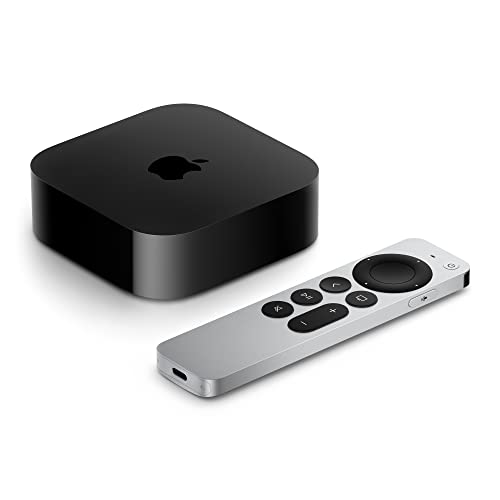
Connecting an external streaming box provides an immediate method to test your screen’s resolution and handshake stability. The Apple 2022 Apple TV 4K Wi‑Fi with 64GB Storage automatically interrogates the display upon initial setup, detecting the panel’s maximum resolution and color capabilities. Powered by the A15 Bionic chip, this player runs automated handshake routines that negotiate the highest possible video output. If your screen is natively capable of Ultra HD, the setup interface automatically suggests 4K resolution at the appropriate refresh rate.
Similarly, the Apple 2021 Apple TV 4K 32GB utilizes its A12 Bionic processor to evaluate display pipelines with precision. Both generations of Apple hardware include a specialized “Check HDMI Connection” utility located inside the Video and Audio menu. When initiated, this diagnostic tool sends high-bandwidth test patterns across the HDMI cable to identify transmission errors, dropped packets, or bandwidth constraints. If the test passes successfully, you receive direct confirmation that your display, cable, and port configuration actively support uncompressed 4K video.
Using a dedicated streaming player also clarifies whether performance limitations stem from the television or from sluggish built-in smart TV interfaces. Older smart platforms may stop receiving firmware updates, causing integrated apps to drop 4K playback support even when the physical panel is capable. By routing playback through an external Apple TV 4K device, you bypass outdated internal applications and guarantee full access to native 4K streams across services like Disney+, Amazon Prime Video, and Apple TV+.
Detecting High Dynamic Range Formats: Dolby Vision, HDR10, and HDR10+
While 4K describes the pixel resolution of the panel, High Dynamic Range represents the contrast range and color depth rendered across those pixels. Modern high-resolution screens frequently pair 2160p resolution with advanced HDR standards such as Dolby Vision, HDR10, or HDR10+. When viewing high-frame-rate content on fast-action Mini-LED panels, the television switches into a dedicated HDR picture mode whenever it detects dynamic metadata. A small notification badge typically appears in the top corner of the screen, confirming active HDR decoding.
Not every 4K display includes support for premium HDR formats, especially models released during the early transition to Ultra HD. Early generation 4K panels often possessed the necessary 3840 x 2160 pixel count but lacked the peak brightness and 10-bit color processing required for dynamic range rendering. Checking whether your screen triggers a Dolby Vision or HDR10 badge during supported movies confirms modern processing capability. If your television maintains standard dynamic range mode despite feeding it an HDR signal, your panel likely predates wide color gamut standards.
Verifying HDMI Cables and Transmission Bandwidth
A television may possess complete 4K capabilities while presenting a degraded 1080p image due to an inadequate HDMI cable. Standard high-speed cables manufactured for older equipment are rated for roughly 10.2 gigabits per second, which cannot sustain 4K video at 60Hz. When bandwidth limits are exceeded, modern video sources automatically step down resolution to 1080p to prevent signal collapse. Upgrading to a certified Premium High Speed cable rated for 18Gbps ensures reliable transmission without unexpected resolution drops.
Symptoms of cable bandwidth degradation include intermittent flashing black screens, visual sparkles, and audio dropouts during playback. These handshake failures occur when the cable struggles to carry dense 4K data packets and HDCP authentication keys simultaneously. Certified cables undergo rigorous testing to ensure shielding against electromagnetic interference and support for continuous data streams. Replacing older mystery cables with properly rated cords eliminates physical bottlenecks between your media sources and the display.
Evaluating Streaming App Badges and Network Requirements
Streaming platforms like Netflix, YouTube, and Max automatically inspect client hardware before granting access to Ultra HD content tiers. When browsing titles on a verified 4K television, movie details display a “4K UHD” or “Vision” badge beside the rating. If you observe an “HD” badge instead, either the streaming platform has not detected 4K hardware or your subscription plan excludes Ultra HD streaming. Checking these title badges offers a fast visual confirmation of whether your hardware pipeline meets provider standards.
Network bandwidth constraints also cause streaming platforms to silently throttle playback resolution below native 4K levels. Major streaming services generally require a consistent internet download speed of at least 25 megabits per second to deliver 2160p streams. If local network congestion or weak Wi-Fi connectivity throttles throughput, the player drops playback to 1080p or 720p without halting playback. Running a connection speed test within your television or media player settings verifies whether bandwidth bottlenecks are degrading picture quality.
Audio Passthrough and Audio-Visual Synchronization
High-definition video playback often requires matching multi-channel acoustic capabilities to create a balanced entertainment experience. Modern 4K screens pair advanced video engines with HDMI eARC ports, allowing uncompressed audio passthrough to external soundbars or receivers. When evaluating televisions designed for clear dialogue and sound, verifying audio return channel functionality ensures dialogue remains crisp and intelligible. The presence of an eARC port strongly indicates modern chassis architecture, as older 1080p televisions relied exclusively on legacy ARC or optical connections.
High-bitrate audio formats like Dolby Atmos require substantial bandwidth alongside dense 4K video streams. If an older television struggles with audio processing, you may experience irritating lip-sync delays between spoken dialogue and on-screen mouth movements. Modern 4K chipsets incorporate advanced audio-video synchronization engines to keep multi-channel surround sound aligned with 2160p video frames. Checking digital sound output settings on your television guarantees that both picture and acoustic tracks stream at their intended reference fidelity.
Troubleshooting Handshake Glitches and False Negative Signals
Occasionally, a fully capable 4K television might incorrectly report a lower resolution due to transient HDMI handshake errors. These communication hiccups happen when the television and media source fail to exchange Extended Display Identification Data during initial boot. Performing a full system power cycle resolves temporary handshake corruption and forces the hardware to renegotiate display parameters. Disconnect the power cords for both the television and source player for thirty seconds before reconnecting them to restore normal communication.
Outdated system software can also introduce bugs that interfere with input detection and resolution switching. Manufacturers regularly distribute over-the-air firmware updates to refine HDCP compatibility, fix input lag glitches, and improve media handshakes. Navigating to the system settings and executing a software update ensures your television possesses the latest communication drivers. Maintaining current firmware helps your television properly recognize high-resolution devices without reverting to legacy display standards.
Confirming display resolution requires methodically inspecting your model specifications, testing enhanced HDMI inputs, and verifying source output settings. When hardware indicators, diagnostic menus, and media player tools consistently show 3840 x 2160 output, you can relax knowing your display operates at true Ultra HD capability. With proper cabling and bandwidth configurations established, your home entertainment setup delivers the sharp contrast, expansive color, and immersive pixel clarity intended by modern content creators.



Write Your Review
No reviews yet. Be the first to share your experience!