
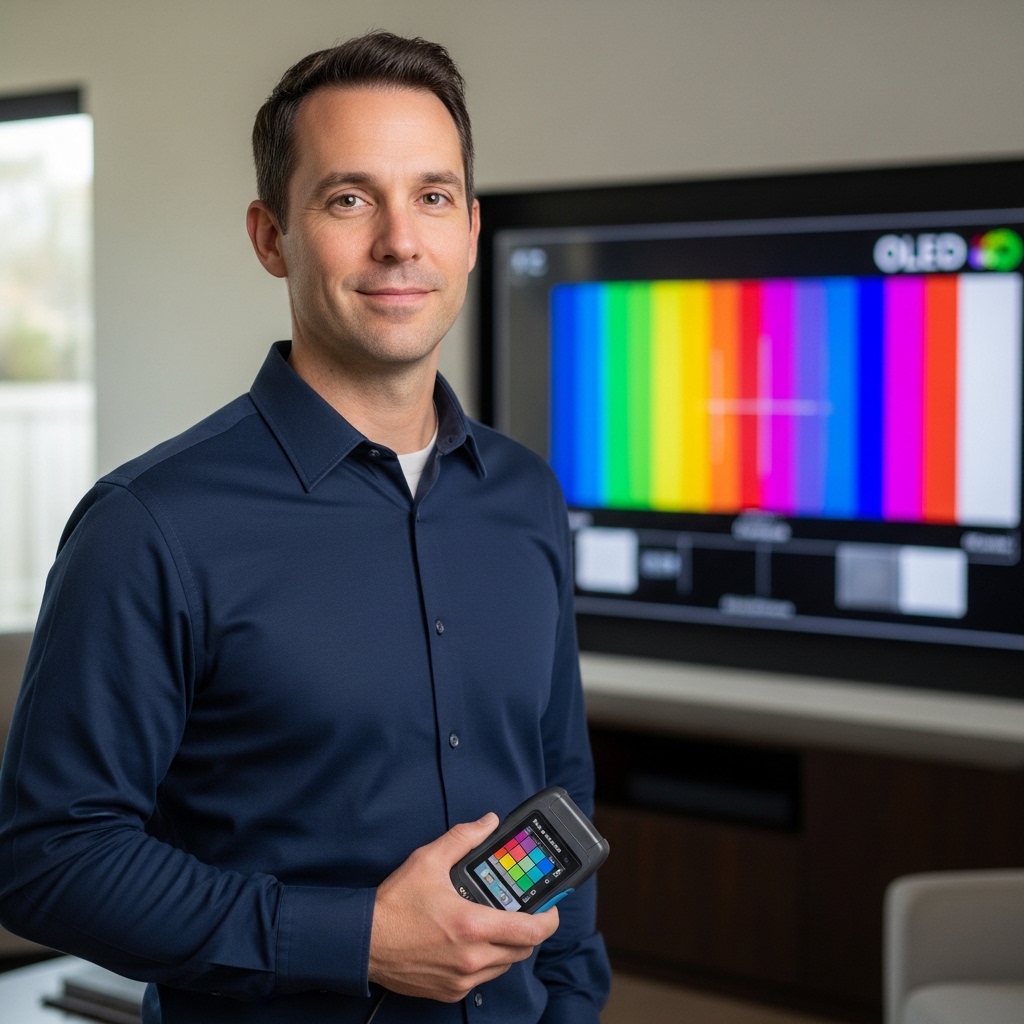

A universal remote may need a TV code, a learning step, or no programming at all, depending on its design. If your original controller is missing, how to set up a universal remote to your TV starts with identifying the exact remote and television models, then following the instructions supplied for them. The word “universal” does not mean every remote works with every TV or supports every function. Check the remote’s compatibility information and setup method before trying to control the TV.
Some remotes use a code list, while others are described as ready to use with particular TVs or learn commands from an original remote. Those methods are not interchangeable, so avoid applying one model’s button sequence to another. Confirm which controls matter in daily use, such as power, volume, input, and menu navigation, and verify them individually after setup. For more TV-control context, browse our TV remote information.


Pros
- Integrated LED backlighting makes late-night streaming and movie viewing in dark rooms much easier
- Works right out of the box for key brands such as Samsung, LG, Sony, Sharp, and Panasonic
- Fast infrared response keeps menu browsing, volume adjustments, and channel switching smooth
- Affordable replacement solution for worn-out, missing, or pet-chewed factory remotes
Cons
- Lacks an integrated microphone for smart TV voice control with Google Assistant or Alexa
- Requires manual 3-digit code programming for brands outside the immediate plug-and-play group
- Operates via direct line-of-sight infrared rather than Bluetooth or RF connection
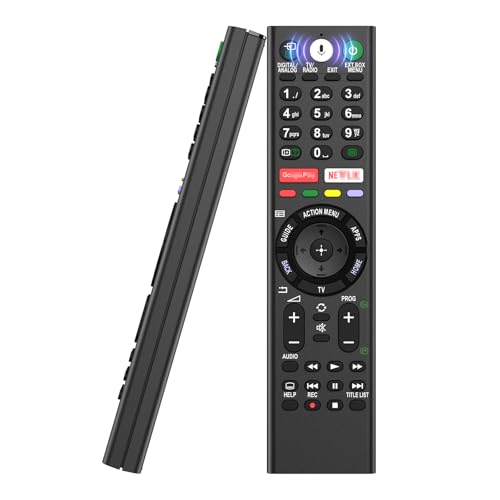
A reliable remote control is essential for any living room or bedroom entertainment hub, and the MYHGRC Universal Backlit TV Remote is built to solve the everyday frustration of lost, damaged, or unresponsive factory clickers. Designed as a versatile replacement accessory, this remote caters to homeowners, apartment renters, cord-cutters, and families with kids who need an affordable, hassle-free way to manage their television displays. Whether you are managing an ultra-thin 4K OLED TV in the living room or a budget LED screen in the guest room, having a responsive controller keeps your entertainment running smoothly.
One standout practical feature for home theater enthusiasts and late-night binge-watchers is the integrated LED backlighting. When watching movies in a pitch-black room or catching a late game while family members sleep, hunting for tiny volume or mute buttons can be irritating. The backlight illuminates the keypad clearly, making adjustments simple without turning on lamps. With an advertised 0.2-second transmission response time, button presses feel immediate, keeping streaming platform navigation, input toggling, and audio level adjustments prompt and fluid.
Compatibility is broad across modern home entertainment hardware. According to product specifications, the remote supports over 16 television brands, functioning across popular displays from Samsung, LG, Sony, Sharp, and Panasonic without requiring extra setup steps. For owners of smart TVs powered by platforms like Roku TV, Google TV, or webOS, the fundamental navigation pads, return buttons, and playback keys align well with everyday streaming and cable box use.
Setting up secondary brand televisions like Vizio, TCL, Hisense, Insignia, or Toshiba is straightforward using the included manual. Entering pairing mode requires holding the mute and power buttons together before keying in the corresponding 3-digit manufacturer code. The lightweight plastic housing feels balanced in hand, with rubberized buttons that offer decent travel and tactile feedback for long streaming sessions and sports watch parties.
Because this is a budget-focused universal infrared controller, there are realistic trade-offs to keep in mind. It does not feature a built-in microphone, so users who rely on voice commands for Alexa, Siri, or Google Assistant will still need their smartphone app or smart speaker. Additionally, as an infrared device, it requires a clear line of sight to your TV sensor and will not control hidden set-top boxes behind solid cabinet doors. For shoppers seeking an illuminated, dependable, and pocket-friendly replacement remote for movie nights and daily streaming, it represents a very practical choice.
Getting started with the MYHGRC universal remote is designed to be painless for most major TV households. For owners of Samsung, LG, Sony, Sharp, Panasonic, and Philips televisions, the remote is engineered to communicate immediately once standard batteries are installed, requiring no code entry or sync procedures before you start browsing your home screen.
For other compatible brands such as TCL, Hisense, Vizio, Toshiba, and Insignia, programming requires a simple manual code entry. By pressing the Mute and Power buttons simultaneously for three to five seconds until the LED indicator illuminates, users can type in the assigned 3-digit brand code from the included booklet. The light turns off upon successful pairing, confirming that power, volume, and input functions are ready for daily viewing.
Activating the helpful backlight feature is equally simple. Holding the Power and OK buttons together for three seconds toggles the illumination on or off, allowing viewers to preserve battery life during daylight sports broadcasts or turn the lights on for midnight movie marathons.

Pros
- Easy setup with no programming or instructions needed
- Very affordable price point for a replacement remote
- Broad compatibility with many older Philips TV models
Cons
- Does not work with Philips Roku TVs, limiting its use for newer models
- Requires line-of-sight to the TV's IR sensor, which can be less convenient than Bluetooth or RF remotes
- Basic build quality may not feel as premium as original Philips remotes
If you have an older Philips LCD or LED TV and have lost the original remote, the Elekpia Universal Remote Control offers a straightforward and budget-friendly solution. This is not a smart or feature-packed remote, but a simple replacement that gets the job done without any complicated setup. It is designed specifically for a wide range of Philips TV models, making it a practical choice for homeowners, apartment renters, or anyone using a Philips TV in a bedroom or living room.
Based on the product specifications, this remote uses infrared (IR) technology, meaning you will need to point it directly at the TV's IR sensor for it to work. This is standard for basic remotes and should work reliably in most home setups. The biggest selling point is that no programming is required - just insert two AAA batteries (not included) and it is ready to use. This makes it an ideal option for families with kids who might misplace remotes, or for gift buyers looking for an easy, no-fuss replacement.
In terms of performance, this remote is designed for basic TV functions like power, volume, channel changing, and input selection. It is not a universal remote that can control other devices like soundbars or streaming boxes. For movie lovers, sports fans, or cord-cutters who rely on streaming devices, this remote will only control the TV itself. However, for those who simply need to turn on their TV and change channels, it works as described.
The build quality is simple and lightweight, with a standard black plastic design. It measures about 7 inches long, which is a typical size for a TV remote. It does not have backlighting or any advanced features, but for the price, that is expected. The remote is compatible with a long list of Philips LCD and LED TV models, but importantly, it does not work with Philips Roku TVs. So if you have a newer Philips with Roku built-in, this remote will not function.
For home theater enthusiasts or gamers, this remote will not offer any special gaming or picture quality adjustments beyond what your TV's basic menu provides. It is best suited for budget-conscious shoppers, families, or anyone needing a simple replacement without the hassle of programming codes. If you are looking for a remote to control a soundbar or streaming device, you might need a more advanced universal remote.
Overall, this is a practical and affordable solution for a specific need. If you have a compatible Philips TV and need a basic replacement remote, this product may work well for you. Just double-check your TV model against the compatibility list and remember it does not support Philips Roku TVs. For the price, it is a reasonable option to get your TV back to full functionality.

Pros
- Works almost immediately out of the box with major smart TV platforms like Roku OS, Tizen, and webOS
- Dedicated streaming shortcut buttons simplify app launching for kids and cord-cutters alike
- Generous 45-foot operating range accommodates larger living rooms, master bedrooms, and home theaters
- Sturdy button design built to endure heavy everyday television use
Cons
- Not compatible with streaming sticks, Fire TV devices, Apple TV, or TV streaming cubes
- Does not control independent soundbars or dedicated AV audio receivers
- Requires two AAA batteries that must be purchased separately
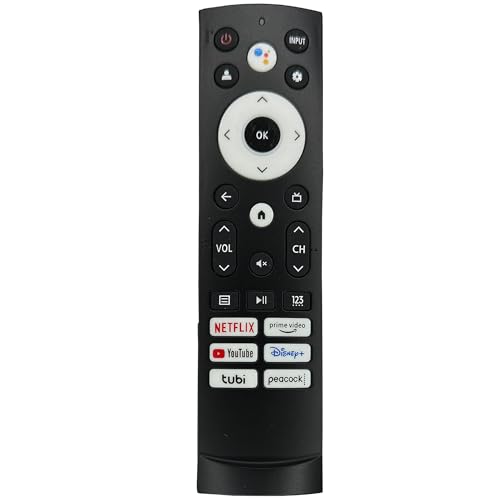
The EWO'S Universal TV Remote is a straightforward replacement accessory designed to restore seamless control over popular smart televisions. Crafted as an all-in-one controller for households that have misplaced an original remote or worn out frequently pressed buttons, this unit targets the core television brands found in American homes. Whether navigating smart displays from Samsung, LG, Sony, Vizio, TCL, Hisense, or Philips, this remote aims to provide reliable living room management without the frustration of complex programming codes.
For homeowners, apartment renters, busy families with kids, and budget-conscious cord-cutters, having an accessible remote control is critical for everyday entertainment. Based on product specifications, this remote is configured to handle the smart interfaces of leading display platforms right out of the box. From tweaking picture presets during sports watch parties to adjusting volume during high-action movie nights, the remote supports fundamental television navigation with quick infrared responsiveness rated at under 0.1 seconds.
The physical layout balances traditional channel surfing with modern streaming habits. Equipped with four dedicated streaming application shortcut keys and a historical browsing button, the controller lets movie lovers and binge-watchers jump straight into their preferred content libraries. The internal components provide a wide infrared transmission range spanning up to 45 feet, ensuring smooth signal reception from across an open living room or from the comfort of a bedroom headboard.
Build quality focuses on everyday practicality and durability. The slim profile measures just 6.1 inches long and 1.4 inches wide, making it comfortable for both adults and children to hold. According to the manufacturer, the key switches have passed testing for over 150,000 clicks, offering reassuring resilience against the routine drops and spills typical of a lively family den or gaming setup.
A few hardware boundaries should be kept in mind prior to selection. This model operates strictly through direct infrared signals aimed at native smart televisions, meaning it does not control HDMI streaming sticks, Fire TV devices, Roku Streaming Sticks, or external TV cubes. Additionally, users who rely on external soundbars from brands like Klipsch, Anker, or TCL will still need their dedicated audio remotes, as this unit does not handle independent soundbar programming.
For viewers seeking an economical, no-nonsense remote replacement for a compatible Samsung, LG, Sony, or Roku TV, this controller provides solid everyday utility. It eliminates the headaches of lost controllers in living rooms, spare bedrooms, and college dorms, keeping movie nights, sports broadcasts, and weekend cartoon marathons running smoothly.
Getting this universal remote operational takes minimal effort compared to traditional universal controllers. Users simply install two fresh AAA batteries into the rear compartment and aim the remote directly at the television sensor. For standard smart TVs from Samsung, LG, Sony, Vizio, TCL, Hisense, and Philips, basic commands typically function immediately without manual code entry.
If brand adaptation is required, a brief press-and-hold sequence on the designated programming buttons links the remote to the target television set. Because the remote relies entirely on standard infrared communication, line of sight to the display is necessary for optimal performance.
Prospective buyers should verify that their setup relies on a standalone smart TV rather than an auxiliary streaming dongle. Devices such as Roku Streaming Sticks, Fire TV Sticks, and standalone media cubes cannot receive signals from this controller, making it strictly intended for integrated television displays.
Navigating modern smart TV platforms like Roku OS, LG webOS, and Samsung Tizen requires quick access to home menus and streaming services. This replacement remote integrates directional navigation arrows and dedicated shortcut buttons that cut down on menu scrolling, allowing users to jump directly into popular streaming platforms.
The inclusion of a historical browsing key allows viewers to recall previous channels or recent viewing menus rapidly. This feature proves particularly handy during live sports viewing or when flipping between broadcast news and streaming video.
While the remote lacks voice control microphones found on higher-end OEM controllers, its rapid 0.1-second command transmission provides responsive tactile navigation for casual viewing, streaming marathons, and late-night television watching.
A closely related question is covered in sky q remote volume not working on sony tv, which may help alongside this section.
Set up a universal remote according to its control method
Start by identifying the setup method stated for your exact remote. A universal remote might require entering a code, learning from an original remote, or no programming for a specifically listed TV. The product descriptions here illustrate why the method matters: one describes code entry for some brands, another requires an original remote for learning, and others describe particular TVs as requiring no setup. These details are not a general instruction for every universal remote.
Before pressing buttons, compare the TV’s model number with the remote’s compatibility information and locate the remote’s own manual or code list. Brand names alone may not settle compatibility, especially where a listing specifies model exceptions or supported device types. If the method or code is unclear, use the manufacturer’s documentation or support rather than guessing at a sequence.
Use this short preparation checklist before beginning:
- Record the TV brand and full model number from its label or documentation.
- Identify the remote’s model and read its included setup instructions.
- Check whether the TV model appears in the remote’s compatibility information.
- Confirm whether setup calls for a code, learning, or no programming.
- Install the battery type and quantity specified by the remote manufacturer.
- Check whether the instructions require the original remote during learning.
Identify the TV and remote before choosing a setup method
A TV’s model number is more useful than its screen size or a broad brand name when checking a replacement. Look for the model identifier on the TV label, in its settings if accessible, or in its original paperwork. Enter the full identifier when searching a manufacturer compatibility list, and pay attention to suffixes or regional variants. A listing that names a brand does not necessarily establish compatibility with every model from that brand.
Next, determine whether the remote is intended for a specific TV family or is a programmable universal model. A replacement that is described as compatible with specified models may work without code entry, but its listed scope still matters. A programmable remote may cover multiple brands yet depend on finding the correct code. A learning remote can have a different prerequisite, such as access to the original controller.
Check device exclusions as carefully as compatibility claims. Some TV remotes are not intended to control streaming sticks, set-top boxes, soundbars, or other equipment, even if those devices connect to the television. This article concerns controlling the TV itself; a remote that operates the television may not navigate an external device. If you need one controller for multiple devices, verify each device type and its supported functions in the remote documentation.
Follow the instructions for code-entry remotes
For a code-entry model, use its own manual and code list rather than a sequence found for another remote. The supplied product information for one model describes holding Mute and Power until an indicator lights, then entering a three-digit TV brand code. That is a model-specific example, not a universal procedure. Consult the instructions that came with your remote to confirm the button combination, code format, indicator behavior, and how to proceed if a code is rejected.
Keep the TV available to observe while programming, and make sure the remote has the specified batteries installed. Enter only a code listed for the TV brand or model in the remote’s documentation. If the indicator response differs from the manual, stop and recheck the instructions instead of repeatedly trying unrelated combinations. A code that is accepted by the remote may still need to be tested against the TV’s actual controls.
Some manuals provide several codes for one brand. Try them in the documented order, checking the stated response after each attempt. If none works, verify the TV model, the code list version, and whether the remote supports that particular set. Contact the remote manufacturer when the instructions direct users to request additional codes. Do not assume that a code for a related brand or product family will control the TV correctly.
For more on a connected point, our page on sony tv remote sensor not working goes into it separately.
Use learning setup only when the remote requires it
A learning remote copies commands from another controller rather than relying solely on a TV code. The product information for one listed remote says its original remote is required for pairing and that an instruction manual is included. That requirement should not be generalized to other universal remotes. Check the specific manual to see whether learning is supported, which buttons can be learned, and how the original and replacement remotes must be positioned.
If the original remote is lost or does not work, a learning-only setup may not be possible as described. Check whether the remote offers another documented setup method or whether the manufacturer lists a compatible model-specific code. Do not infer that the TV can transmit commands to teach the replacement; the described learning arrangement may depend on the original controller. When the instructions do not explain a necessary step, ask the manufacturer for clarification.
For any learning process, follow the manufacturer’s directions exactly and confirm each copied command using the TV. Learning may cover only the functions the manual says it can store. It should not be assumed to reproduce every original button, shortcut, or menu function. If one command does not transfer as expected, review the remote’s instructions before repeating the process.
Check whether a listed replacement needs programming
Some replacement remotes are sold for particular TV models and are described as requiring no programming. For example, one supplied listing identifies a range of Philips TV models, specifies infrared operation, and excludes Philips Roku TVs. That description gives a useful model-specific check, but it does not establish compatibility with every Philips television. Compare the complete TV model against the listing and note exclusions before relying on a no-setup claim.
A remote described as ready to use may still depend on correct batteries and an unobstructed path to the TV’s infrared sensor. Follow its documentation for battery type and installation, and point it toward the sensor if the instructions specify infrared control. Do not treat a statement about no programming as proof that every button will match every TV function. Test the controls you need and consult the seller or manufacturer if an expected function is absent.
Other listings may describe an immediate setup but also mention programming buttons or device limitations. Read the full instructions rather than relying on a short product heading. In particular, distinguish a TV remote from a controller intended to operate a streaming stick or other device. Compatibility with a smart TV does not by itself confirm control over its external accessories or every application feature.
Readers working through this often check best batteries for tv remote next.
Verify the controls that matter after setup
After programming or installing batteries, check the remote against the TV using the following controls:
- Test Power and confirm the TV responds as described in the remote manual.
- Check Volume and Mute, since those commands may be supported differently.
- Try Input or Source if the remote documentation lists that function.
- Navigate the TV menu and confirm directional and selection buttons respond.
- Test channel controls only if the TV and remote instructions support them.
- Check any dedicated shortcut buttons against the functions stated in the listing.
Testing controls one at a time helps identify a partial mismatch. Power working while volume does not may indicate a limitation in supported commands, an incomplete setup, or a different issue; it does not prove one specific cause. Compare the result with the manual and compatibility notes. If only certain buttons fail, record which ones work and ask the manufacturer whether those functions are supported for the TV model.
Button layout also matters to household usability. Large, high-contrast buttons may be easier for some people to distinguish, while a compact layout may place less-used functions in less obvious locations. These are practical layout considerations, not proof that a remote is accessible for every user. Check the actual button labels and whether the functions used most often are available and easy to identify.
Diagnose a remote that does not control the TV
When nothing responds, first separate basic power or line-of-sight issues from programming problems. Confirm the batteries are installed in the orientation shown by the remote instructions and that they are the specified type. If the remote uses infrared, aim it toward the TV’s sensor and remove objects blocking the path. Follow the manufacturer’s guidance for battery handling and do not open the remote or television.
If the TV responds to some commands but not others, revisit the compatibility list and supported-function details. A universal remote may not reproduce every control on the original, and a code may support only some functions. Check whether the manual has a documented process for trying another listed code or repeating setup. Avoid holding random button combinations, which can trigger an unrelated mode or make the setup state harder to understand.
If the remote’s indicator behaves differently from the instructions, check the code entry and setup mode before concluding that the TV is incompatible. If the indicator confirms a code but the television remains unresponsive, verify that the remote is configured for TV control and that the TV itself is operating. Consult the TV’s own manual for safe, basic checks. Electrical or internal hardware problems require qualified service, not an attempt to open or repair the TV.
For a remote that works intermittently, consider whether the batteries are depleted, the signal path is obstructed, or the remote is being used outside the conditions described by its manufacturer. A button that works only at certain angles can make sensor alignment or an obstruction worth checking, but it does not establish the underlying fault. If basic checks do not resolve the issue, use the manufacturer’s troubleshooting guidance and provide the exact TV and remote models when requesting help.
Choose a replacement based on its documented setup limits
Before buying a replacement, prioritize an explicit match for the TV model, a clearly stated setup method, and confirmation that the buttons you rely on are supported. A broad list of TV brands can be useful, but it is not the same as a model-by-model compatibility confirmation. Check exclusions, especially for branded TV variants or external devices. If the manufacturer provides a model lookup or manual, use it before ordering.
Consider the setup prerequisites as part of compatibility. A code-based remote may depend on a matching code list; a learning remote may require the original; a model-specific infrared replacement may require line of sight. A remote that asks for an original controller is a poor practical match if that controller is unavailable, even if its general description sounds suitable. Likewise, a no-programming claim does not resolve an explicitly stated model exclusion.
Check battery requirements and whether batteries are included in the product information, rather than assuming. The supplied Philips replacement information, for instance, says two AAA batteries are required and not included. That detail applies to that specific listing only. Follow the supplied battery instructions and do not substitute an unapproved power source.
Finally, decide whether the goal is basic TV operation or broader control of connected equipment. A TV-only remote may restore power, volume, and navigation but may not control a streaming device or soundbar. If combined control is necessary, confirm support for each device and function in the documentation. The exact model, stated setup requirement, and tested-in-use controls should guide the decision, not the word “universal” alone.
Use the remote’s own instructions, verify compatibility against the TV’s full model number, and test essential buttons individually. If the documentation does not confirm the needed setup method or functions, ask the manufacturer before treating the remote as a match.
If this topic is part of a bigger decision, hisense tv not responding to remote is a useful related read.




Write Your Review
No reviews yet. Be the first to share your experience!