
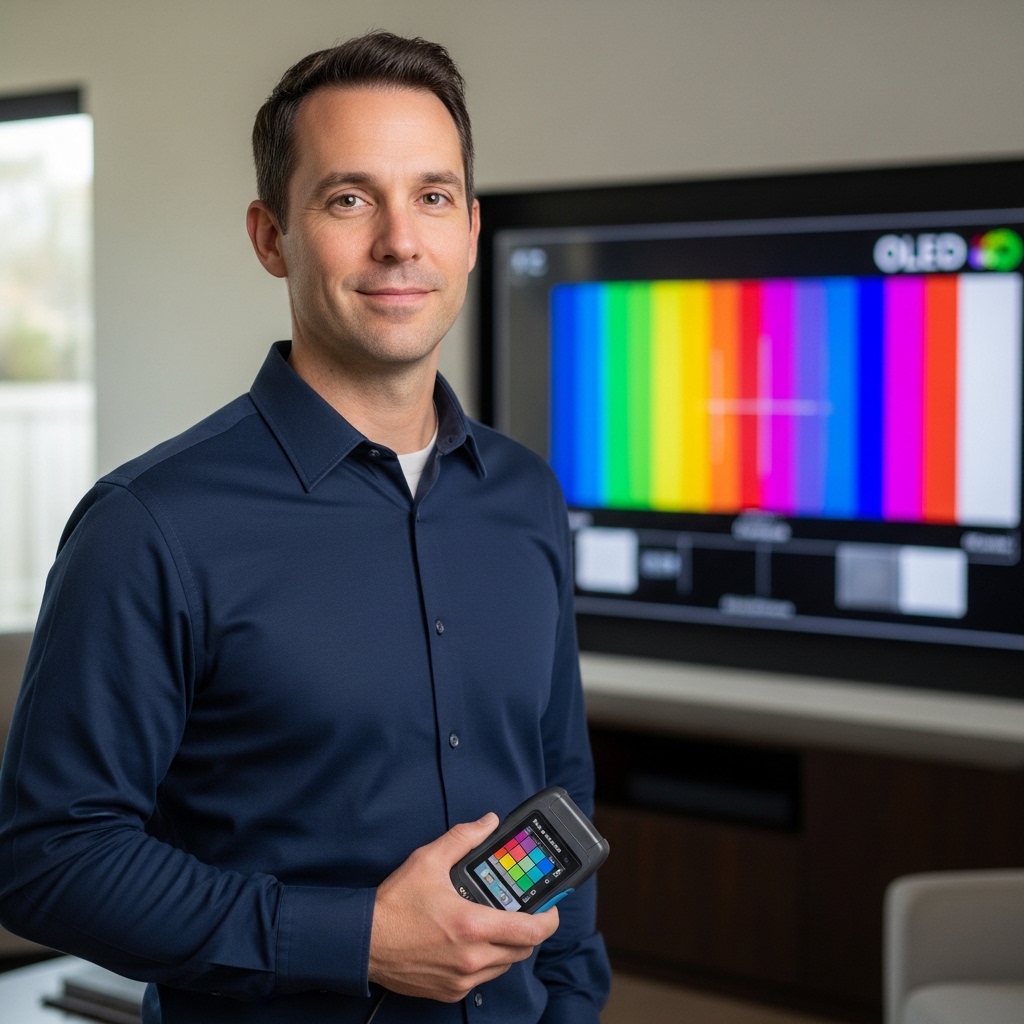

Living room sunlight streaming through expansive windows can quickly diminish the perceived punch of an organic light emitting diode screen. Emissive pixels excel at producing infinite contrast and absolute ink-black depths, but ambient illumination often challenges perceived screen luminance. Many owners find their brand new television looking unexpectedly muted straight out of the box because factory default profiles prioritize regional regulatory energy efficiency over pure visual impact. Learning how to increase brightness on lg oled tv displays requires dialing in system settings, adjusting picture presets, and understanding how organic panels manage luminance. Even viewers shopping for budget OLED televisions frequently notice this out-of-the-box dimness when transitioning away from traditional backlit displays.
Modern displays feature several hidden submenus designed to protect self-illuminating diodes and curb excessive power consumption. When you disable factory power-saving features and configure targeted image profiles, your screen can output significantly punchier specular highlights and more vibrant daytime visuals. Adjusting OLED Pixel Brightness, setting Peak Brightness to high, and enabling tailored Dynamic Tone Mapping algorithms will immediately restore bright-room clarity without destroying creative intent. This guide explains the exact menu paths, picture modes, and visual safeguards you need to unlock the full luminous potential of your television.

Pros
- Infinite contrast and true black levels characteristic of LG OLED evo technology
- Compact 42-inch screen size serves double duty as a high-end gaming monitor or bedroom television
- Comprehensive HDR support including Dolby Vision, HDR10, and Filmmaker Mode
- Fast and intuitive webOS smart platform with direct Alexa voice command support
- Wide viewing angles ensure consistent color and contrast from off-center seating positions
Cons
- OLED peak brightness may not overcome heavy direct sunlight in bright sunrooms
- Compact built-in speakers deliver clear dialogue but benefit from an external soundbar for deep bass
- Screen size is too modest for large living rooms or expansive home theater seating arrangements
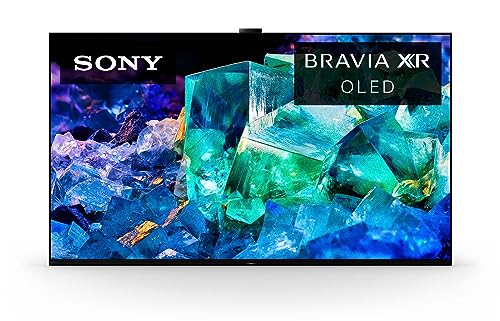
The LG 42-Inch Class OLED evo C6 Series Smart TV is a high-performance 4K television built for spaces where a massive panel simply will not fit. Featuring LG renowned self-lit pixel technology, this television produces absolute blacks and infinite contrast by turning off individual pixels completely. Based on product specifications, this television is an outstanding option for apartment renters, college dorm residents, bedroom television shoppers, and dedicated PC or console gamers looking for reference-grade picture performance on an office desk or cozy media console.
Picture quality is where this OLED evo display truly shines. Thanks to pixel-level dimming, dark scenes in horror films, sci-fi adventures, and prestige streaming dramas render with zero backlight bleed or haloing around bright subtitles. The inclusion of Dolby Vision and HDR10 ensures a wide color volume and nuanced highlights, while Filmmaker Mode lets cinephiles disable unwanted motion smoothing to enjoy movies exactly as directors mastered them. Additionally, AI Super Upscaling 4K works to clean up standard high-definition broadcasts, older sitcoms, and compressed streaming video, keeping everyday viewing crisp and well-defined.
Gamers will find plenty to love in this compact display. The near-instantaneous response time of OLED panels combined with low input lag ensures that fast-paced first-person shooters, competitive fighting games, and racing titles feel fluid and immediate. The TV handles rapid camera pans with minimal blur, avoiding the motion smearing typical of traditional LED screens. Wide viewing angles also make it easy to host friends for couch co-op or casual multiplayer tournaments, as the colors and contrast remain accurate even when seated off to the side.
LG webOS platform anchors the smart TV experience, offering quick access to major streaming hubs such as Netflix, Disney+, Prime Video, and YouTube. With built-in Alexa compatibility, viewers can easily search for titles, switch inputs, or adjust volume using simple voice commands. The audio system features Dolby Atmos decoding for expanded sound staging. For setups incorporating an LG soundbar, WOW Orchestra functionality allows the television speakers to work in harmony with the external sound system to reinforce vocal clarity and frontal presence.
Weighing around 22 pounds, this display is remarkably easy to handle, whether mounting to a standard VESA wall bracket or placing it on a sturdy desktop. It offers three HDMI ports and three USB inputs, providing ample room for gaming consoles, streaming dongles, and external storage drives. As with most OLED panels, peak brightness is tuned for controlled lighting rather than sun-drenched sunrooms with unshaded windows. Furthermore, while dialogue clarity is crisp for news and talk shows, action movies and bass-heavy soundtracks will sound significantly better with an external audio system.
For anyone looking to build a high-tier compact entertainment hub, the LG 42-Inch C6 OLED evo strikes an impressive balance between size and picture fidelity. Whether you are binge-watching your favorite streaming series in bed, tackling marathon PC gaming sessions, or watching weekend football games in a cozy apartment living room, this television delivers authentic flagship visual performance in a manageable, space-saving format.
Thanks to its self-illuminating pixels, the LG C6 series OLED eliminates the need for a separate LED backlight. This allows the panel to achieve true blacks, which dramatically enhances visual depth and highlights fine shadow details in dark games and films. Colors remain rich and punchy across a wide spectrum without looking artificially oversaturated.
The 42-inch form factor is especially popular among PC gamers and console enthusiasts who sit close to the screen. With rapid pixel response times, fast motion handling, and low input lag, this display helps eliminate ghosting and screen tearing during intense gameplay. It functions seamlessly as an ultra-premium desktop monitor that effortlessly transitions into an evening movie display.
Running on LG intuitive webOS smart platform, the C6 Series offers rapid app switching and an uncluttered home dashboard. Built-in Alexa integration provides hands-free convenience, letting you launch apps, check weather updates, and control compatible smart home devices with voice prompts.
On the audio side, the television incorporates Dolby Atmos processing to create a wider, more dimensional soundfield from the integrated speakers. When paired with compatible LG soundbars, the WOW Orchestra feature enables simultaneous sound output from both the television and soundbar, elevating dialogue height and creating a more immersive acoustic presentation.
Step-by-Step Settings and Adjustments to Boost LG OLED Luminance
Boosting the luminance on an emissive television requires navigating a series of interrelated software toggles and thermal safety protocols. Self-lit pixels generate their own illumination without a secondary LED backlight matrix, which means overall light output is managed dynamically by onboard processors to maintain panel health. If your screen looks dull during daytime viewing or HDR movies seem dark, a few targeted menu changes can completely revitalize your picture. The following step-by-step methods systematically target the primary causes of suppressed screen brightness across standard definition and high dynamic range content.
Disabling Energy Saving Modes in webOS
Modern LG televisions ship with strict energy conservation protocols enabled to comply with international energy standards. These eco presets automatically throttle maximum panel voltage and actively dim the screen, creating an artificially subdued presentation. Navigating to the general device care menu allows you to turn off Energy Saving Step and Auto Power Down entirely. Once you deactivate these eco limiters, the panel immediately unlocks its full factory-rated baseline luminance.
To disable these power caps, press the gear icon on your Magic Remote and enter the All Settings dashboard. Scroll down to General, select Energy Saving, and ensure that the primary Energy Saving Step toggle is switched to Off. You should also verify that Ambient Light Sensor adjustments are disabled, as this feature forcibly reduces light output whenever your room dims slightly. Taking these preliminary steps ensures your television operates at unrestricted baseline power rather than artificially capping its organic pixel array.
Selecting and Customizing the Brightest Picture Modes
Default picture presets vary significantly in their target luminance curves, color temperatures, and processing priorities. The standard factory preset often applies heavy blue-tinted cool color temperatures and aggressive contrast clipping that actually reduces perceived shadow clarity. For bright living spaces, choosing ISF Expert Bright Room for SDR broadcasts or Cinema Home for Dolby Vision delivers significantly elevated average picture levels. These calibrated profiles raise overall scene brightness while preserving skin tones and critical highlight details.
Filmmaker Mode remains the reference standard for cinematic accuracy, but it is engineered primarily for dark-room viewing environments. If you prefer using Filmmaker Mode during the day, you must manually adjust its baseline illumination parameters to overcome ambient glare. Viewers seeking maximum visual pop for daytime sports can also explore the Personalized Picture Wizard or tweak Cinema Home settings. Selecting the right baseline preset forms the foundation for every subsequent luminance enhancement you apply.
Calibrating OLED Pixel Brightness, Contrast, and Black Level
Inside the Advanced Picture Settings menu, three specific sliders govern luminance distribution across dark and light portions of the image. The slider labeled OLED Pixel Brightness directly controls the electrical current supplied to the organic emissive subpixels. For well-lit environments and daytime viewing, you can safely push OLED Pixel Brightness all the way to 100 without introducing visual distortion. This setting forms the primary engine of your display output and should always be maximized when combating room glare.
The Contrast slider should generally remain between 85 and 100 for standard content, ensuring peak whites achieve full saturation without clipping near-white textures. Conversely, you should avoid raising the general Brightness or Black Level slider above its default value of 50. Pushing black levels beyond 50 does not actually make the TV brighter; instead, it raises the noise floor and washes out deep black bars into murky charcoal gray. Keeping black levels anchored at 50 preserves the infinite emissive contrast that makes OLED highlights pop against surrounding shadows.
Maximizing Peak Brightness Settings in Advanced Controls
The dedicated Peak Brightness setting represents one of the most effective tools for intensifying specular highlights in modern displays. This algorithm allocates extra electrical energy to small clusters of white subpixels during intense visual moments like explosions, glinting sunlight, or reflections. Within the Clarity and Brightness submenus, locate the Peak Brightness control and set it to High. Activating this feature allows the panel to deliver punchier highlight details that dramatically increase perceived dynamic contrast.
When watching standard dynamic range content like cable news or vintage television series, Peak Brightness can inject synthetic dynamic range into flat SDR signals. Some purists prefer turning this control off for strict SDR mastering compliance, but leaving it on High is essential for combating bright daylight. It allows the panel to punch through surrounding reflections without requiring you to dim room lighting. The resulting image maintains vivid specular brilliance across both streaming feeds and physical media.
Enabling Dynamic Tone Mapping for HDR10 Content
High dynamic range signals contain static metadata that dictates luminance boundaries, but different mastering levels can cause standard HDR10 content to appear overly dark. LG incorporates a proprietary Dynamic Tone Mapping system that analyzes incoming video frames in real time. When Dynamic Tone Mapping is switched to On, the onboard processor dynamically recalculates grayscale curves to lift midtones while preserving bright highlight gradients. This real-time analysis prevents dense shadows from swallowing visual detail in sunlit rooms.
Leaving Dynamic Tone Mapping off forces the TV to rely solely on static tone mapping, which can compress the entire luminance curve downward. While static tone mapping preserves absolute creator intent in pitch-black home theaters, it frequently makes daytime HDR viewing feel sluggish and dim. Switching this setting to On produces an immediate, visible lift across the entire scene without washing out color saturation. It remains one of the single most effective software adjustments for brightening modern 4K HDR playback.
Managing Dolby Vision Precision Detail and Cinema Home
Dolby Vision content utilizes dynamic metadata embedded directly within individual movie scenes, but preset selection still dictates overall screen luminance. When a Dolby Vision source activates, the television automatically switches into specialized Dolby Vision picture presets. Choosing Dolby Vision Cinema Home instead of standard Dolby Vision Cinema elevates midtone luminance significantly to compensate for ambient room light. Cinema Home is tuned specifically to deliver punchy, legible HDR playback without sacrificing dynamic contrast.
On newer processor generations, enabling Dolby Vision Precision Detail further enhances local contrast and perceived highlight clarity. This feature sharpens micro-contrast in bright visual elements, helping specular details stand out against ambient background reflections. Owners exploring large-screen OLED displays often rely on Cinema Home to illuminate wide seating areas during daytime sports or action blockbusters. Pairing Cinema Home with activated room light sensors allows Dolby Vision IQ to adjust tone curves smoothly as natural daylight shifts.
Understanding Automatic Brightness Limiter Behavior
Every consumer OLED display incorporates an internal protective safeguard known as the Automatic Brightness Limiter. Because self-lit organic pixels generate heat when driven at maximum voltage, the panel automatically dims full-screen bright content to prevent thermal degradation. You will notice this behavior most prominently during hockey games, winter sports, or broad daytime desert scenes where white content fills the entire display. While small specular highlights can reach intense brightness, broad full-field scenes are naturally throttled down to protect the emissive layers.
This limiter cannot be disabled through standard consumer menus because it serves as an essential hardware safety mechanism. Attempting to bypass these limiters through unauthorized service menus risks permanently damaging the subpixels and voiding your manufacturer warranty. Instead, managing ambient room illumination and optimizing tone mapping helps balance perceived contrast against natural ABL fluctuations. Understanding this physical operational boundary prevents unnecessary frustration when watching bright, full-screen broadcasts.
Optimizing Game Optimizer Settings for Brighter HDR Gaming
Console and PC gamers often encounter subdued screen output when switching into dedicated low-latency gaming modes. When Game Optimizer mode activates, the TV minimizes image processing latency, which can inadvertently disable standard tone mapping enhancements. To counteract this dimness, open the Game Optimizer dashboard and inspect your Black Stabilizer and White Stabilizer values. Setting both stabilizers to 10 maintains reference black levels while keeping bright visual assets clear and defined.
Gamers should also evaluate the choice between HGIG and Dynamic Tone Mapping inside the Game Optimizer picture menu. The HGIG preset turns off display-side tone mapping, allowing consoles like the PlayStation 5 or Xbox Series X to handle HDR boundaries accurately. However, in brightly illuminated gaming dens, switching HDR Tone Mapping from HGIG back to On provides a massive midtone boost that makes virtual game worlds far easier to navigate. Compact screens like the LG 42-Inch Class OLED evo AI 4K C6 Series Smart TV excel as high-performance gaming monitors when calibrated with elevated tone curves and low input lag.
Fine-Tuning Ambient Room Lighting and Viewing Environments
Hardware settings represent only half of the equation when optimizing perceived display brilliance. Because organic light emitting panels utilize semi-gloss or glossy anti-reflective coatings, direct sunlight hitting the screen surface washes out perceived black levels. Positioning your television away from direct window paths or installing sheer window shades instantly restores perceived dynamic contrast. Managing direct glare allows the display to look substantially brighter without requiring extreme internal panel voltage.
Installing subtle bias lighting behind the television cabinet also enhances perceived contrast and reduces eye strain during evening viewing sessions. When a neutral white bias light illuminates the wall behind your television, your pupils naturally constrict, making on-screen highlights appear sharper and cleaner. Many viewers upgrading from compact displays to dedicated streaming displays discover that controlling room reflections yields far greater visual impact than pushing hardware brightness sliders past safe limits. Thoughtful room positioning complements your internal picture calibrations seamlessly.
Balancing Luminance Adjustments with Long-Term Panel Care
Pushing organic pixels to maximum output on a continuous basis naturally accelerates thermal stress on emissive materials. LG builds several automated maintenance features into webOS to protect against image retention while maintaining high brightness levels. Ensure that Screen Move and Logo Luminance Adjustment remain active inside the OLED Panel Care menu. Logo Luminance Adjustment detects static broadcast tickers, news banners, or gaming HUD elements and subtly dims those specific zones without affecting the rest of the image.
You should also ensure your television remains connected to continuous wall power in standby mode rather than unplugging it via smart power strips. When the TV goes into standby, it runs automated pixel cleaning compensation cycles that equalize subpixel wear across the screen. These short automatic cycles preserve uniform light distribution and prevent premature aging across the panel. Maintaining these automated safeguards allows you to enjoy punchy, vibrant brightness every day without compromising long-term panel longevity.
Troubleshooting Persistent Picture Dimming and Handshake Issues
If your display remains stubbornly dark despite optimizing your picture presets, external hardware handshake conflicts may be capping video signal bandwidth. Ensure that HDMI Deep Color is toggled to 4K or 8K across all active input ports to enable uncompressed 10-bit HDR data streams. Faulty or legacy HDMI cables often fail to transmit dynamic HDR metadata correctly, causing the TV to fall back into restricted standard definition color space. Replacing aging cables with certified Ultra High Speed 48Gbps HDMI interconnects frequently resolves unexplained picture dimness immediately.
Streaming applications can also occasionally glitch and fail to trigger proper HDR or Dolby Vision video processing flags. Restarting the television by holding the remote power button for three seconds clears internal system cache and forces streaming apps to re-negotiate video profiles. You should also check for webOS firmware updates, as manufacturers frequently refine tone mapping algorithms and thermal dissipation curves through software patches. Systematically verifying these hardware and signal factors ensures your television consistently performs at its highest luminous potential.
Achieving the ideal balance of brightness and visual depth on an LG OLED display comes down to eliminating unnecessary energy caps while dialing in dynamic tone controls. By deactivating eco modes, pushing OLED Pixel Brightness and Peak Brightness to their full potential, and pairing profiles like Cinema Home or ISF Bright Room with proper room lighting, you can enjoy stunningly vibrant entertainment day or night. These practical adjustments bring out the absolute best in your television, delivering reference clarity and immersive cinematic contrast without risking panel reliability.




Write Your Review
No reviews yet. Be the first to share your experience!