
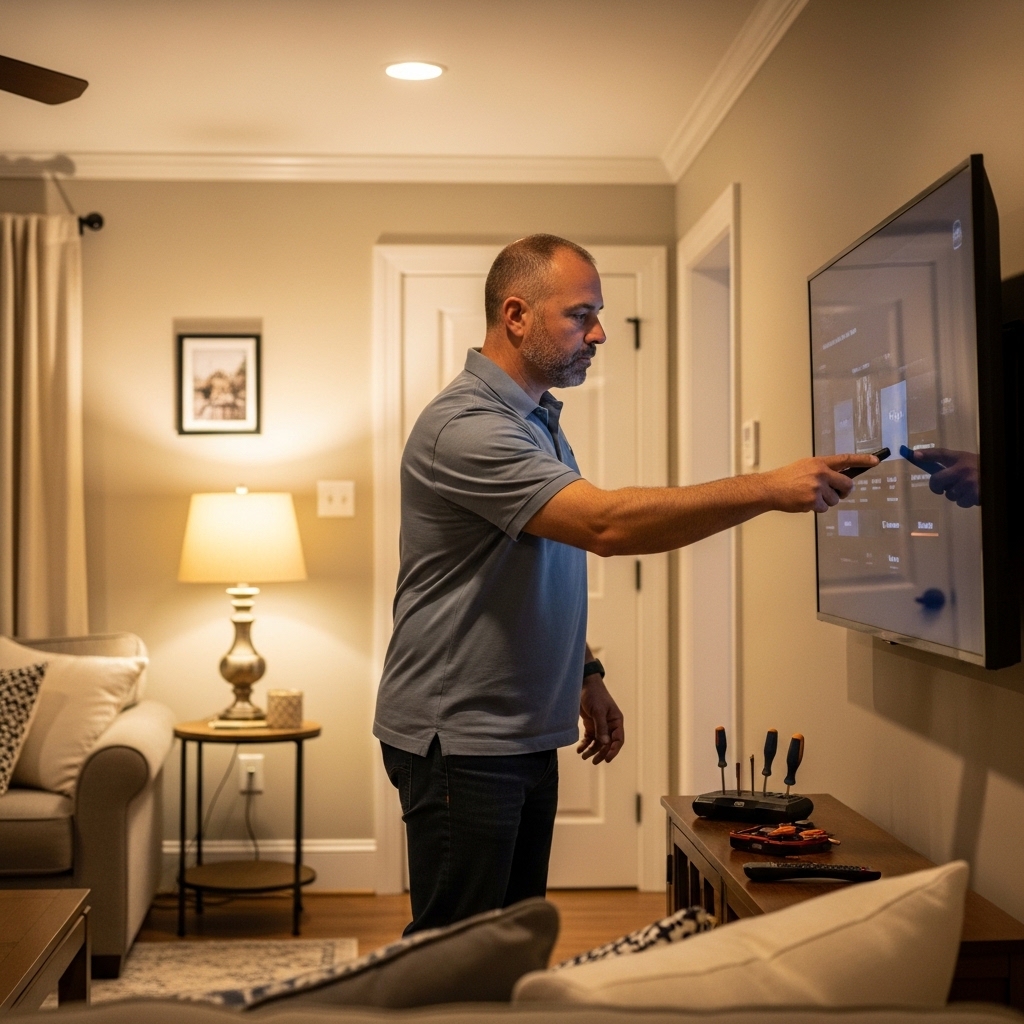

Upgrading your home entertainment setup often begins with a fundamental question regarding display resolution and signal compatibility. Many viewers wonder, can my tv play 4k uhd, especially after purchasing modern gaming consoles, ultra-high-definition discs, or premium streaming subscriptions. While modern retailers prominently advertise Ultra HD badges, older high-definition displays and entry-level screens may downscale incoming signals to 1080p without making the change obvious. Determining whether your screen presents native 3840×2160 pixels requires inspecting physical hardware specifications, video connection ports, and input signal readouts.
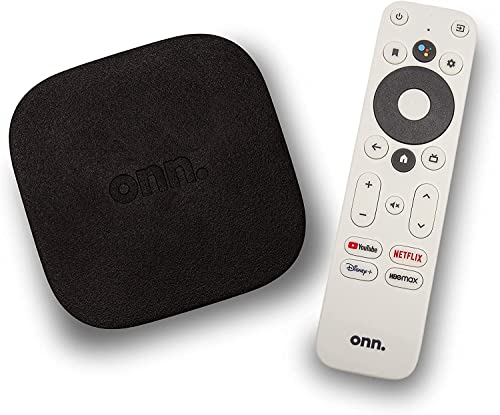
Display manufacturers frequently integrate different tiers of image processing, which can confuse viewers trying to identify true panel capabilities. A display might accept an Ultra HD video stream over a network connection but downscale that content if the internal panel lacks the required pixel density. For viewers exploring modern 55-inch display options for streaming, verifying native hardware resolution ensures you receive sharp text and distinct texture rendering. Connecting an external media player like the ONN Android TV 4K UHD Streaming Device with Voice can also illuminate whether your screen communicates successfully at full resolution or defaults to legacy formats.
Pros
- Crisp 4K Ultra HD streaming upgrade for non-smart or aging televisions
- Intuitive Android TV platform with access to massive Google Play Store app library
- Responsive Google Assistant voice remote and built-in Chromecast convenience
- Includes a dedicated high-speed HDMI cable for easy out-of-the-box installation
Cons
- Requires an available HDMI port and external power outlet near the television
- Relies heavily on a stable home Wi-Fi network for smooth 4K video playback
- Lacks dedicated Ethernet jack for direct wired internet connections without third-party adapters
The ONN Android TV 4K UHD Streaming Device is a compact digital media receiver designed to transform any standard HDMI-equipped display into a full-featured entertainment center. Ideal for apartment renters, cord-cutters, college students, and homeowners outfitting a guest bedroom or basement hangout, this device delivers modern smart capabilities without demanding an expensive television replacement. Whether you want to refresh an older 1080p flat-screen or unlock smooth streaming on an entry-level 4K display from brands like Samsung, Sony, Vizio, Hisense, or TCL, this unit provides an accessible gateway to digital entertainment.
On the performance side, this streamer outputs sharp 4K Ultra HD resolution, delivering four times the pixel density of standard Full HD. When paired with a compatible 4K television, movie lovers and sports fans can enjoy clear detail, crisp text, and vibrant colors during Super Bowl watch parties or weekend family movie nights. The device also supports high-quality audio processing designed to enhance dialogue clarity and provide a balanced listening mix, making late-night binge-watching easier to enjoy without constantly reaching for the volume button.
Running on the reliable Android TV operating system, the streamer grants access to thousands of streaming platforms and tools through the Google Play Store, including Netflix, Prime Video, Disney+, and YouTube. The included voice remote features a dedicated Google Assistant button, letting you search for shows, check the weather, or jump between applications using simple voice commands. With Chromecast built-in, casting personal videos, vacation photos, or music playlists from your iOS or Android phone to the big screen requires only a single tap.
Hardware setup is refreshingly straightforward thanks to the included high-speed HDMI cable and lightweight form factor. The low-profile black unit fits discreetly behind wall-mounted displays or rests neatly on a media console shelf, keeping wire clutter down to a minimum. Connecting to your home wireless network and signing into your Google account takes only a few minutes, making it an appealing option for family members who appreciate simple, user-friendly technology.
While the streamer performs reliably for standard household streaming, there are a few practical limitations to keep in mind. The unit relies on Wi-Fi for its internet connection and does not include a built-in Ethernet port, which means households with congested wireless networks might experience buffering during peak evening streaming hours. Additionally, you will need both an open HDMI port on your display and an available electrical outlet nearby to supply dedicated power.
For budget-conscious shoppers, secondary room setups, and streamers looking to bypass sluggish proprietary TV operating systems, the ONN 4K Android TV Streaming Device offers exceptional everyday practicality. It turns any compatible television into a responsive media hub, making it an excellent investment for casual gaming, weekend movie marathons, and daily news updates.
The Android TV platform offers one of the most versatile smart ecosystems available for modern living room setups. Users can explore a vast library of entertainment, fitness, news, and gaming apps available via the Google Play Store, tailoring their home screen to highlight their favorite subscriptions.
Built-in Google Assistant elevates hands-free convenience, allowing streamers to launch specific titles, pause playback, or manage compatible smart home gear directly through the voice remote microphone. Integrated Chromecast support further expands utility, letting friends and family effortlessly mirror content from mobile devices during social gatherings.
Setting up the ONN streaming media player takes just a few straightforward steps right out of the box. Simply plug the included high-speed HDMI cable into an open input on your television, connect the power adapter, and switch your display input to begin guided on-screen instructions.
The configuration process walks you through linking your home Wi-Fi network and signing into your Google profile. Compact dimensions ensure the device easily conceals behind thin wall mounts, making it well suited for clean apartment layouts, dorm rooms, or RV entertainment systems.
How to Determine If Your Television Supports True 4K UHD Playback
Finding out whether a screen can display native ultra-high-definition content comes down to three main factors: physical panel resolution, input port bandwidth, and hardware copy protection. Many households assume that any flat-panel television produced in recent years handles 4K naturally, but older units and entry-level displays often operate with standard 1080p panels. If a television lacks the necessary internal components, it will downscale incoming 4K content to standard high definition or display an unsupported signal error. Understanding how these hardware layers interact allows you to confirm your display capabilities with certainty.
The distinction between accepting a signal and actually showing it at native resolution causes widespread confusion among consumers. A display can easily receive an Ultra HD signal from an external device, decode the incoming stream, and compress those pixels down to fit a smaller 1080p screen. This downscaling produces an image, but it robs the viewer of the sharpness, texture, and clarity that native 4K provides. Following a structured verification process allows you to evaluate your hardware, inspect your settings, and ensure your system delivers genuine ultra-high-definition playback.
Reading Model Numbers and Native Panel Specifications
Every television carries a specific alphanumeric model number printed on a manufacturer sticker affixed to the rear cabinet. This code reveals the production generation, display series, screen diagonal measurement, and resolution tier directly from the factory. Most major manufacturers embed the screen size at the beginning of the model string followed by a series designation that clarifies resolution. Researching this exact string on the manufacturer support website provides the authoritative physical pixel count of the liquid crystal or emissive panel.
A true 4K Ultra HD panel features an exact resolution of 3840 horizontal pixels by 2160 vertical pixels, creating roughly 8.3 million individual points of light. In contrast, standard Full HD screens provide 1920 horizontal pixels by 1080 vertical pixels, totaling approximately 2.07 million pixels. If your television documentation or system menu lists 1080p or Full HD, the physical panel cannot render true 4K resolution regardless of the source media connected to it. While compact displays for smaller spaces often serve secondary rooms well with high-definition panels, main viewing areas require a native 3840×2160 matrix for true Ultra HD.
Inspecting HDMI Port Standards and Bandwidth Requirements
Physical panel resolution means very little if the television cannot receive a full ultra-high-definition video signal across its physical connection interfaces. Transmitting uncompressed 4K video frames at fluid motion rates requires substantial connection bandwidth that older interface standards cannot supply. Legacy HDMI 1.4 ports provide a maximum bandwidth of 10.2 gigabits per second, which caps 4K transmission at an unusable 30 frames per second for smooth motion. Modern 4K playback demands HDMI 2.0 or HDMI 2.1 inputs capable of handling 18 to 48 gigabits per second to support 4K resolution at 60 frames per second or higher.
Manufacturers generally stamp port designations directly onto the back or side connection panels near the physical HDMI sockets. Look closely at the molded plastic or printed text next to each input port for labels such as 4K, 60Hz, or HDCP 2.2. On many transition-era televisions, only one or two specific HDMI ports supported the full bandwidth required for 4K video playback, while the remaining ports stayed restricted to older standards. Connecting an external media streamer to an auxiliary HDMI port that only supports 1080p will throttle the device output automatically.
The Critical Role of HDCP 2.2 Copy Protection
High-bandwidth Digital Content Protection, commonly abbreviated as HDCP, serves as the digital encryption standard that safeguards copyrighted commercial media from unauthorized interception. Commercial streaming services and disc formats mandate that every piece of equipment in the transmission chain supports HDCP 2.2 before releasing a 4K video stream. If your television possesses a 3840×2160 panel but relies on older HDCP 1.4 encryption chips on its inputs, protected commercial 4K content will not play at full resolution. Instead, the streaming service or external player will restrict playback to standard 1080p high definition or display an explicit encryption handshake error.
This digital handshake occurs automatically between the transmitting source device, the interconnecting cable, and the receiving television display within milliseconds of starting playback. If any link in that chain fails to authenticate compliance with HDCP 2.2, the media player drops the resolution down immediately to protect the media stream. Early 4K televisions produced around a decade ago frequently included native 4K panels but completely lacked HDCP 2.2 compliant ports. When diagnosing handshake errors, swapping to an alternative HDMI input labeled specifically for modern encryption often resolves stubborn resolution drops.
Navigating On-Screen Display Menus and Signal Diagnostic Banners
The most straightforward method to verify active signal playback involves consulting the internal on-screen diagnostic banner provided by your television operating system. Pressing the display, info, or status button on your original television remote control summons an information overlay showing incoming video parameters. This status banner typically reveals the active input label, current horizontal and vertical pixel dimensions, vertical refresh rate, and dynamic range format. If the banner reports 3840×2160 or 2160p at 60Hz, your television is actively receiving and displaying a verified 4K video feed.
If the diagnostic banner indicates 1920×1080 or 1080p while playing what you believed to be 4K media, a bottleneck exists somewhere along the signal pathway. This reading confirms that despite any 4K badges displayed in the streaming app title card, the actual video delivered to the screen remains standard high definition. Some modern smart televisions omit a dedicated info button on simplified remotes, requiring users to press the input button or select the active source icon from the home dashboard. Checking this diagnostic screen during active video playback provides immediate, empirical confirmation of the current operating state.
Testing with Streaming Devices and External Media Sources
External streaming hardware provides an excellent reference tool for testing whether your television can negotiate and sustain a true 4K connection. Hardware such as the ONN Android TV 4K UHD Streaming Device with Voice includes an automated display detection system that probes the connected television upon startup. During the initial setup sequence, the device queries the Extended Display Identification Data stored inside the television memory to identify supported resolutions and refresh rates. If the television supports native ultra-high-definition, the streaming unit automatically sets its output resolution to 4K Ultra HD at 60Hz.
You can verify this connection manually by opening the display preferences within the Android TV operating system menu. Navigating to the screen resolution submenu displays the current output format alongside a list of supported display profiles. If the 3840×2160 options appear selectable and active, the television has successfully confirmed its physical 4K display capabilities to the external player. Conversely, if the highest available selectable option stops at 1080p, the television either lacks a 4K panel or the connected port cannot negotiate the required bandwidth.
Distinguishing Native 4K Playback from Internal Upscaling
A widespread source of confusion involves the difference between native ultra-high-definition content and artificial video upscaling performed by television processors. Every true 4K television contains an internal scaling engine designed to stretch lower-resolution signals across its 8.3 million pixels. When you feed a standard 1080p cable broadcast or streaming video into a 4K display, the internal processing chip calculates and inserts extra pixels to fill the screen completely. While this process prevents the image from appearing inside a small window in the center of the frame, it does not transform the video into genuine 4K.
Native 4K content originates from cameras, digital animation engines, or film scans that capture individual details across all 3840×2160 points of data. Upscaling, by comparison, utilizes mathematical interpolation and sharpening algorithms to guess what those missing pixels ought to look like based on surrounding information. The resulting picture appears cleaner than raw low-resolution video, but it lacks the genuine fine texture, hair definition, and background separation of native media. If your television status screen confirms a 1080p input signal, the display is merely upscaling that feed rather than playing native 4K.
Internet Speed and Streaming App Subscription Requirements
Even when a television possesses a verified 4K panel and compliant HDMI ports, digital content providers enforce strict network requirements before transmitting Ultra HD data. Streaming high-bitrate 4K content requires a continuous, stable broadband internet connection with sufficient throughput to prevent buffer under-runs. Major streaming services generally recommend a minimum sustained connection speed of 15 to 25 megabits per second per active stream. If network congestion causes bandwidth to dip below that threshold, the application dynamically downgrades the stream to 1080p or 720p without halting playback.
Subscription tiers also play a pivotal role in whether streaming services permit your equipment to access 4K streams in the first place. Several leading streaming platforms reserve 4K UHD and High Dynamic Range video playback exclusively for their highest-priced subscription tiers. If your account remains on a standard tier, the platform limits your video delivery to 1080p regardless of how capable your television hardware might be. Reviewing your active subscription plan confirms whether your account holds the necessary permissions to unlock ultra-high-definition streaming feeds.
Common Setup Pitfalls That Prevent 4K Output
Substandard or damaged HDMI cables represent one of the most frequent physical bottlenecks preventing televisions from receiving 4K signals. Many households inadvertently reuse older cables that were manufactured under legacy High Speed specifications with bandwidth caps of 10.2 Gbps. While these older cables work reliably for 1080p content, attempting to push 4K video at 60Hz causes visual artifacts, flickering black screens, or silent downscaling to standard resolution. Replacing suspect cables with certified Premium High Speed or Ultra High Speed HDMI cables guarantees sufficient bandwidth to sustain full 4K transmission.
Passing video signals through intermediate home theater gear introduces another layer of potential incompatibility that can sabotage 4K playback. Audio-video receivers, soundbars, and HDMI switchers placed between your source device and the television must also support 4K pass-through and HDCP 2.2 encryption standards. If an external media player plugs into a soundbar that only supports HDMI 1.4 pass-through, the audio unit strips the 4K signal before passing the video along to the screen. In setups featuring displays engineered for balanced audio or dedicated external sound systems, connecting video sources directly to the TV while routing sound back via eARC prevents pass-through bottlenecks.
Some televisions also require users to enable enhanced HDMI signal formats manually within the internal input settings menu. By default, older firmware builds often left HDMI ports set to legacy compatibility modes to prevent handshake failures with antique set-top boxes. Accessing the external input management menu and switching the designated port from standard to enhanced format opens the necessary pipeline for full resolution. Without toggling this software switch, the television may report an inability to process 4K video feeds even when the physical hardware is fully capable.
Practical Verification and Long-Term Display Optimization
Confirming whether your screen can display true 4K UHD playback ultimately requires checking each link in your entertainment chain systematically. Start by inspecting the manufacturer model number on the rear cabinet to verify that the physical panel contains a native 3840×2160 pixel grid. Next, ensure external source devices connect directly to HDMI 2.0 or 2.1 ports labeled for HDCP 2.2 copy protection using certified high-bandwidth cables. Verify that your streaming account tier and internet speed sustain the required throughput, and activate enhanced HDMI formats within your television input settings menu.
Once you verify that incoming signals register as 2160p on your diagnostic status banner, maintain your equipment to ensure consistent long-term performance. Periodically check for television firmware updates that address HDMI handshake stability, app compatibility, and copy protection protocol updates. Keeping your smart operating system updated prevents unexpected playback errors as content providers update their streaming codecs over time. When older smart interfaces become sluggish or lose app support, modern streaming adapters provide a cost-effective way to refresh connectivity while maintaining native 4K output.
Taking the time to verify native panel capabilities and signal configurations ensures that your home theater delivers the full visual impact you expect. When high-resolution source material, certified cables, and compliant hardware align, the resulting image showcases pristine clarity and lifelike detail. Knowing exactly how to check your television hardware gives you complete control over your viewing experience across all modern media formats.




Write Your Review
No reviews yet. Be the first to share your experience!