
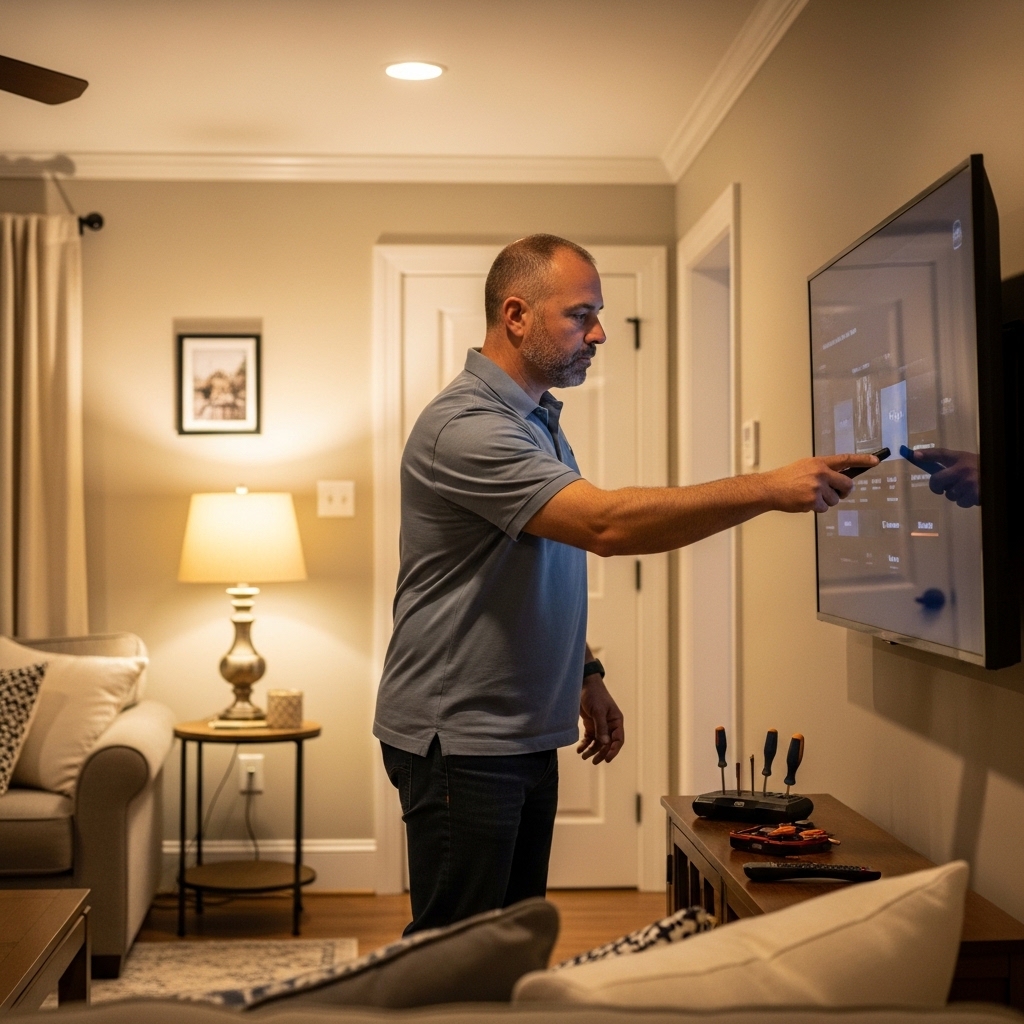

If your Samsung TV and soundbar both support Bluetooth audio, pair them through the TV’s sound settings and select the soundbar as the output device. The process for how to connect bluetooth soundbar to samsung smart tv depends on the TV’s menu version and the soundbar’s pairing mode, so check both manuals before starting. Bluetooth can avoid a cable between the devices, but it may not be available on every TV or soundbar, and wireless pairing does not guarantee that every audio format or feature will work. If the TV does not list the soundbar, check the device specifications and consider a supported wired connection instead.
Start with the TV and soundbar close enough for pairing, and make sure each device is powered on. Put the soundbar into Bluetooth pairing mode, then use the TV’s sound output or Bluetooth speaker list to search for it. Menu labels vary by Samsung TV model and software version, so use the TV’s documentation if the names differ. After connecting, play TV audio and confirm the soundbar is selected as the output; a Bluetooth transmitter may be needed only when the TV lacks Bluetooth audio output but has a compatible audio jack.

Pros
- Bluetooth 5.3 connectivity offers a stable wireless link with low audio latency for streaming movies and television shows
- Constant USB power means you never have to pause a movie marathon to recharge an internal battery
- Quick one-button switching between transmitter (TX) mode and receiver (RX) mode with clear LED status lights
- Pocket-sized profile keeps entertainment centers and wall-mounted TV setups tidy and free from wire clutter
Cons
- Requires a 3.5mm AUX headphone jack on the TV, which is absent on some newer displays that only feature optical or HDMI eARC outputs
- Lacks native optical audio input, requiring an external digital-to-analog converter for televisions without analog headphone ports
- Signal range is rated for roughly 33 feet and may experience dropouts through thick interior walls or heavy interference
The Bysimilai 2-in-1 Bluetooth 5.3 Transmitter Receiver is a compact home entertainment audio dongle designed to bring wireless headphone connectivity to standard televisions, older LED panels, and living room displays. Whether you are an apartment renter trying to keep movie night quiet for neighbors, a parent binge-watching shows after the kids go to bed, or a gamer seeking untethered sound on a bedroom TV, this tiny adapter bridges the gap between analog audio outputs and modern wireless gear. It plugs directly into an available USB port for continuous power and routes audio straight to your favorite Bluetooth headphones or wireless soundbar.
For movie lovers and sports fans, audio-video synchronization is critical. Based on product specifications, this adapter uses Bluetooth 5.3 with low-latency transmission to minimize the annoying delay between characters speaking on screen and sound reaching your ears. When paired with compatible low-latency headphones, dialogue clarity remains sharp during fast-paced action films, Super Bowl watch parties, and intense video game sessions where timing matters. The 33-foot working range provides ample room to move around the living room or grab a drink in the kitchen without dropping the TV audio feed.
In terms of hardware practicality, the adapter features an ultra-small footprint that tucks neatly behind wall-mounted TVs or entertainment centers without dangling cords. Because it draws power straight from any standard USB port on your TV, streaming box, or USB wall block, you never have to worry about a drained internal battery midway through a film. Switching between transmitter mode for sending TV audio out and receiver mode for streaming music from a smartphone into an older stereo receiver is handled with a simple button press, confirmed by clear red and blue status lights.
Setup is straightforward for most viewers, but checking your TV port selection is essential prior to installation. The adapter relies on a 3.5mm AUX headphone jack for its audio input, meaning newer 4K displays that rely strictly on HDMI eARC or digital optical audio outputs will require a separate digital-to-analog audio converter. Users also need to adjust their TV audio settings to output through external headphones or AUX to ensure sound routes properly. Ensuring your headphones are fully in pairing mode and disconnected from nearby smartphones helps avoid initial sync hiccups.
For cord-cutters, bedroom TV viewers, and budget-conscious entertainment fans, this pocket-sized Bluetooth adapter offers an inexpensive way to modernize an existing entertainment center without buying a brand-new television. It excels at late-night movie streaming, solo gaming, and private sports viewing where blasting a high-wattage sound system is not an option. If your TV has a standard 3.5mm audio jack and an available USB power port, this practical accessory provides dependable wireless freedom for everyday living room and bedroom setups.
Connecting this adapter to your home entertainment system takes just a couple of quick steps. First, plug the USB connector into any powered USB port on your television or a nearby USB wall charger to ensure a continuous power supply. Next, insert the 3.5mm audio cable into the headphone output or AUX port of your TV and press the adapter button until the red transmitter light appears.
To establish a clean connection with your wireless headphones, make sure Bluetooth is temporarily switched off on nearby smartphones, tablets, or laptops. Put your headphones into active pairing mode, and the adapter will link automatically within seconds. If your TV does not play sound immediately, check your TV audio settings menu and switch the sound output from internal TV speakers to headphone or external audio out.
Adding Bluetooth transmission to an existing TV setup transforms how you enjoy media during late hours. For apartment dwellers and late-night streamers, it provides a full-volume cinematic experience through noise-canceling headphones without disturbing others in adjacent rooms. You get deep bass, clear dialogue, and background details without keeping the household awake.
For console gamers playing on secondary screens or bedroom televisions, the low-latency transmission keeps game audio aligned with high-speed visual cues. Whether you are playing casual story-driven adventures or sports titles, the wireless connection eliminates cable clutter around your couch or gaming chair, giving you a cleaner living space and untethered freedom of movement.

Pros
- Detachable 2-in-1 layout offers versatile horizontal or dual-tower speaker placement for tight TV setups
- HDMI-ARC with CEC support simplifies daily viewing by working seamlessly with your TV remote
- Dedicated DSP EQ modes significantly sharpen spoken dialogue in movies and streaming shows
- Reliable Bluetooth 5.3 streaming provides smooth background music playback from phones and tablets
- Subwoofer output port provides a convenient upgrade path for heavier low-end punch
Cons
- Lacks built-in deep sub-bass frequencies without connecting an external dedicated subwoofer
- Does not support premium surround sound formats like Dolby Atmos or DTS:X decoding
- Dual-unit configuration requires connecting cables between both split halves
The Miroir 100W 2.0 Channel Detachable Sound Bar is a versatile home entertainment audio system designed to upgrade the thin, downward-firing built-in speakers found on modern smart TVs. Ideal for apartment renters, bedroom TV setups, college students, and budget-conscious movie streamers, this unit provides an immediate boost to dialogue clarity and audio volume without cluttering your entertainment center. Whether you are pairing it with a compact 32-inch bedroom display or a 65-inch 4K living room screen, this soundbar bridges the gap between weak factory television audio and complex multi-speaker setups.
In terms of audio performance, the system utilizes dual tweeters and dual woofers powered by 100 watts of output to deliver balanced stereo separation across movies, sports, and casual gaming. Flat panel LED and OLED TVs frequently struggle with dialogue intelligibility during loud action sequences or broadcast sports commentary. Based on product specifications, this unit incorporates digital signal processing (DSP) across three distinct sound presets for movies, music, and gaming. The movie profile accentuates speech frequencies to ensure whispering characters remain intelligible, while the gaming mode widens stereo tracking for directional sound cues in console titles.
A standout physical feature is the 2-in-1 detachable chassis, measuring approximately 31.2 inches wide when joined together horizontally. Users with limited console depth or unique media cabinets can twist and separate the unit into two standalone vertical speaker towers to sit beside a television or desktop gaming monitor. The matte black finish complements modern slim-bezel televisions, and integrated mounting points allow homeowners to secure it directly under a wall-hung screen for a clean, floating appearance.
Everyday connectivity is streamlined thanks to HDMI-ARC integration featuring Consumer Electronics Control (CEC) support. Once connected via a standard HDMI cable, your television remote automatically manages soundbar power and volume adjustments, eliminating coffee table remote clutter. For non-video entertainment, Bluetooth 5.3 facilitates wireless streaming from smartphones, tablets, or laptops with steady wireless range up to 50 feet. An included sub-out port also gives audio enthusiasts the flexibility to wire an external powered subwoofer later on.
While the soundbar offers clear dialogue and punchy stereo projection, prospective buyers should understand its practical limits. As a 2.0-channel configuration without an integrated or included powered subwoofer, it does not produce deep sub-bass frequencies for floor-shaking cinema rumbles, nor does it decode multi-dimensional formats like Dolby Atmos. Additionally, using the split-tower configuration requires running an interconnect cable between both speakers. For everyday family streaming, sports viewing, dorm gaming, or secondary bedroom televisions, it remains an accessible and adaptable audio solution.
Connecting the Miroir soundbar to your home entertainment setup is straightforward and user-friendly. For the best audio fidelity and convenience, connect your TV via the HDMI-ARC port and enable HDMI-CEC in your television settings menu. This configuration ensures the soundbar powers on and off simultaneously with your television and responds seamlessly to your existing TV remote volume buttons.
If you prefer a split configuration beside your TV stand or computer desk, simply twist the center locking mechanism to divide the soundbar into dual vertical desktop towers. Be sure to use the included base stands for stability on flat surfaces. For wireless music listening during parties or family gatherings, pressing the source button switches rapidly to Bluetooth 5.3 mode for instant mobile phone pairing.

Pros
- Noticeable boost in speech clarity and vocal definition for news, sports, and movies
- Ultra-compact two-inch profile avoids blocking TV screens or remote IR sensors
- Effortless plug-and-play setup with optical audio cable included in the box
- Convenient dialogue mode button and bass boost toggle on the included remote
Cons
- HDMI cable is not included in the box and must be purchased separately
- Lacks native Dolby Atmos decoding and immersive 3D surround height effects
- Deep bass enthusiasts will need to purchase an external Bose Bass Module
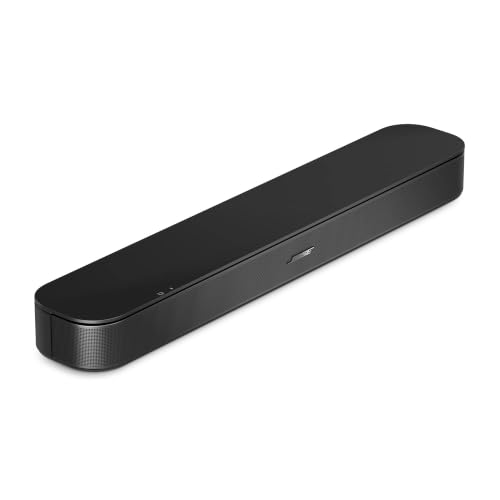
Modern 4K televisions, from ultra-thin OLED panels to vibrant QLED displays, deliver stunning visual fidelity but often struggle with downward or rear-firing speakers that leave dialogue sounding muffled. The Bose TV Speaker addresses this common living room annoyance as a dedicated, all-in-one soundbar engineered specifically for speech clarity and spatial dispersion in a compact package.
This low-profile soundbar fits smoothly into apartments, master bedrooms, home offices, and family living rooms where console space is limited. It is especially beneficial for cord-cutters, seniors, and viewers who find themselves constantly turning on closed captions during fast-paced dramas, as well as sports fans who want commentary to cut clearly through loud stadium noise.
Acoustic performance centers around two angled full-range drivers that cast sound wider than the unit's 23-inch frame suggests. Activating the dedicated dialogue mode analyzes incoming sound to emphasize human speech, sharpening vocal pronunciation against loud background scores or sudden sound effects. A center high-frequency tweeter further clarifies upper register audio so whispers and subtle cues remain distinct.
Practical design is a clear strength of this speaker. Measuring just over two inches tall, it slides under the low stands of popular TVs from Samsung, LG, Sony, and TCL without blocking infrared sensors. The rear interface includes HDMI-ARC, optical audio, and a 3.5mm auxiliary input, complemented by onboard Bluetooth for casual music streaming from your phone or tablet.
Setup takes only a few minutes. Connecting via HDMI-ARC enables CEC functionality, allowing your existing TV remote to regulate volume and power without juggling multiple controllers. While the speaker includes an optical cable for immediate out-of-the-box use, an HDMI connection provides the smoothest day-to-day operation alongside streaming apps on Roku, Fire TV, or Google TV.
Potential buyers should keep in mind that this speaker focuses primarily on dialogue and clean stereo sound rather than immersive Dolby Atmos height channels or heavy sub-bass. Those seeking ground-shaking home theater rumble will want to add a compatible Bose Bass Module. For everyday television viewing, evening news broadcasts, and dialogue-driven shows, it offers an efficient and dependable audio improvement.
Built-in TV speakers frequently project audio downward or against the wall behind your entertainment center, resulting in muddy acoustics. The Bose TV Speaker positions dual angled drivers directly toward the seating area, spreading sound naturally across your couch to create a broader stereo image during movie nights and streaming binges.
The centerpiece feature is the dialogue enhancement button located on the remote control. Turning on this mode boosts frequencies associated with human speech while gently taming harsh background noise, making hushed conversations legible without forcing you to raise the master volume.
For music, sporting events, and video games, the remote also features a bass boost toggle. This adds pleasant warmth and body to orchestral scores and action scenes, providing balanced low frequencies that remain tidy and distortion-free in small to medium-sized living spaces.
Connecting the soundbar to your television is straightforward and requires only a single cable. You can use the included optical audio cable for direct digital audio transmission, or use an optional HDMI cable to take advantage of your TV's HDMI-ARC port.
Using HDMI-ARC simplifies daily entertainment by syncing the soundbar directly with your TV. When you turn on your smart TV, the speaker powers on automatically, and your primary TV remote controls the volume seamlessly. The soundbar also accommodates an auxiliary 3.5mm connection for older audio equipment or gaming monitors.
Wireless Bluetooth pairing turns the soundbar into a convenient home speaker when your TV is turned off. You can easily link a smartphone, tablet, or laptop to play playlists, podcasts, or audiobooks with rich, room-filling sound quality.
Readers working through this often check best soundbar for samsung tv next.
Pairing a Bluetooth soundbar with a Samsung Smart TV
To connect wirelessly, the Samsung TV must offer Bluetooth audio output and the soundbar must accept Bluetooth audio. Pairing makes the TV and soundbar recognize each other; selecting the soundbar as the active output routes TV sound to it. The exact menu path varies across Samsung models, so follow the labels shown on your screen rather than relying on a single universal sequence. If Bluetooth is absent from the TV’s audio output options, confirm the model’s supported connections before assuming a setting is hidden.
Bluetooth is not the same as a wired HDMI ARC or optical connection. It can be convenient when both devices support the required Bluetooth audio connection, but the available features and behavior depend on the TV, soundbar, settings, and content. A wired connection may be a practical alternative if pairing is unavailable or unreliable. Before changing cables or settings, identify the ports and connection support listed in the manuals for both devices.
Use this preparation check before opening the TV’s pairing menu.
- Check the Samsung TV manual for Bluetooth audio output support.
- Check the soundbar manual for Bluetooth audio input and pairing instructions.
- Power on both devices and keep them near each other during initial pairing.
- Disconnect the soundbar from another device if it reconnects elsewhere.
- Note the soundbar’s displayed name so you can identify it in the TV list.
Confirm Bluetooth audio support on both devices
A TV may include Bluetooth for accessories without offering Bluetooth audio output to a soundbar. The TV’s manual or specifications should clarify whether it can send audio to a Bluetooth speaker. Likewise, a soundbar may have Bluetooth for streaming music from a phone without supporting a particular TV connection workflow. Check the soundbar documentation for its input modes and instructions for entering pairing mode.
Do not assume that a Bluetooth icon, remote-control connection, or phone-pairing feature confirms TV audio compatibility. Those features can serve different purposes. The relevant detail is whether the TV can transmit audio over Bluetooth and whether the soundbar can receive it. If either specification is unclear, consult the manufacturer’s support information using the exact model numbers.
Put the soundbar into pairing mode
Activate Bluetooth pairing on the soundbar using the method described in its manual. Depending on the model, this may involve selecting a Bluetooth input or using a control on the soundbar or remote. Look for a pairing indicator or an on-screen or audible confirmation if the manufacturer documents one. Avoid guessing button combinations, since controls and indicators differ between products.
If the soundbar is already connected to a phone, tablet, or another television, it may not appear as available to the Samsung TV. Temporarily disconnect the other device or disable its Bluetooth connection, then return the soundbar to pairing mode. Some devices reconnect automatically to a previously paired source, so a fresh pairing attempt may require clearing or disconnecting that prior connection according to the manual.
Open Samsung TV sound output settings
On the Samsung TV, open Settings and look for the sound output or speaker selection menu. Menu wording and organization can differ by model, year, and software version. Choose the option for Bluetooth speakers or Bluetooth audio devices if it is available, then start a device search. If the TV presents a general connection menu instead, use the on-screen prompts and consult its manual for the model-specific route.
Keep the soundbar in pairing mode while the TV searches. When its name appears, select it and accept any confirmation displayed by the television. A successful pairing should make the soundbar selectable as the TV’s audio output, but pairing alone does not prove that sound is currently routed there. Return to the sound output menu and verify that the connected soundbar is selected.
Follow this sequence, adapting menu names to the TV and soundbar documentation.
- Switch the soundbar to Bluetooth input and enable pairing mode.
- Open the Samsung TV’s sound settings and locate speaker output.
- Choose the Bluetooth device search or speaker connection option.
- Select the soundbar’s name when it appears in the available device list.
- Set the paired soundbar as the active audio output.
- Play TV content and check that sound comes from the soundbar.
Verify TV audio and adjust settings carefully
Test the connection with ordinary TV programming or another source that normally produces sound. Raise the TV and soundbar volumes gradually, and confirm that neither device is muted. If the television still uses its built-in speakers, reopen the output menu and select the paired Bluetooth device. Also check that the soundbar remains on its Bluetooth input rather than HDMI, optical, or another source.
Bluetooth controls and soundbar controls may behave differently depending on the devices. Do not assume that the Samsung remote will control soundbar volume or power over Bluetooth; confirm remote-control functions in both manuals. If volume control is separate, use the soundbar’s remote or supported controls. Avoid changing several audio options at once, because that makes it harder to identify which setting affected playback.
Audio and video may not remain perfectly synchronized in every Bluetooth setup. If speech appears delayed, check whether the TV or soundbar offers an audio delay or synchronization adjustment, and use the manufacturers’ guidance. Available controls and their effect vary by model. A wired connection may be worth trying if Bluetooth delay remains distracting and both devices support a suitable wired path.
Why the soundbar may not appear or play sound
A missing device can indicate that the TV does not support Bluetooth audio output, the soundbar is not in pairing mode, or the soundbar is connected to another source. Confirm compatibility first, then repeat pairing with the soundbar nearby and available. If the device appears but produces no sound, check the selected TV output, soundbar input, mute state, and volume. These checks distinguish discovery problems from routing or playback problems.
A stale pairing entry can sometimes prevent a fresh connection. If the TV lists the soundbar as previously paired but it will not connect, use the TV’s documented remove or disconnect option and pair again. Follow the soundbar manual if it provides a procedure for clearing paired devices. Do not reset either device unless its manufacturer instructions explain the consequences and steps.
Interference or distance can also affect wireless connections. Move the devices closer for setup and reduce nearby sources of wireless congestion where practical, without obstructing ventilation or placing equipment unsafely. If playback cuts out, check whether the soundbar has switched inputs or reconnected to another paired device. Persistent dropouts may point to compatibility, placement, or device-specific limitations rather than a wrong menu choice.
When a Bluetooth transmitter or cable is the alternative
If the Samsung TV does not provide Bluetooth audio output, an external transmitter may be an option only when the TV has an audio output that the transmitter accepts. Confirm the transmitter’s input requirements and the TV’s available ports before purchasing or connecting anything. A transmitter does not create compatibility by itself, and its audio delay, controls, and supported formats depend on the connected equipment. Follow the device documentation for setup.
Some transmitters require an analog audio connection, such as a 3.5 mm output, and may not work with a TV that lacks that port. A USB socket should not be assumed to carry TV audio simply because it can power an accessory. Check the transmitter specifications and TV manual for the exact signal path. Set any transmitter mode as directed by its manufacturer, since transmit and receive modes serve different purposes.
HDMI ARC or optical may be alternatives when the television and soundbar both support the corresponding connection. These are separate wired routes, not Bluetooth pairing methods, and their setup depends on the available ports and device settings. Check that the selected TV audio output matches the cable and soundbar input. For a product-specific example, the supplied product information describes the Miroir soundbar as having HDMI ARC and Bluetooth, while the Bose TV Speaker listing describes Bluetooth, HDMI, optical, and AUX connections; confirm current details in the manuals for the exact models.
Keep pairing dependable after setup
Once audio works, note which TV output and soundbar input are active. That makes it easier to restore the connection after a device restart or input change. If the soundbar switches to another source, select Bluetooth again and check the TV output selection. Automatic reconnection behavior varies, so consult the manuals rather than assuming the devices will always reconnect in the same way.
Keep device software current only through supported manufacturer methods, and review release notes or support guidance if an update is being considered to address pairing. Do not interrupt power during an update or use unofficial modification instructions. For cable-based alternatives, route cables so they do not create a trip hazard or become pinched, and follow the manufacturer’s placement and ventilation guidance. Never open powered audio equipment to troubleshoot a wireless connection.
A successful setup means the TV recognizes the soundbar, the soundbar is the selected output, and TV audio plays through it without an unacceptable interruption or delay. If any of those checks fails, return to the relevant manual and verify support, input selection, and pairing state before changing hardware. That sequence helps identify whether the issue is compatibility, discovery, audio routing, or playback.
If this topic is part of a bigger decision, how to connect soundbar to samsung tv using optical cable is a useful related read.


Write Your Review
No reviews yet. Be the first to share your experience!